


Smart Projector Setup: Placement, Wi‑Fi, Updates & Audio
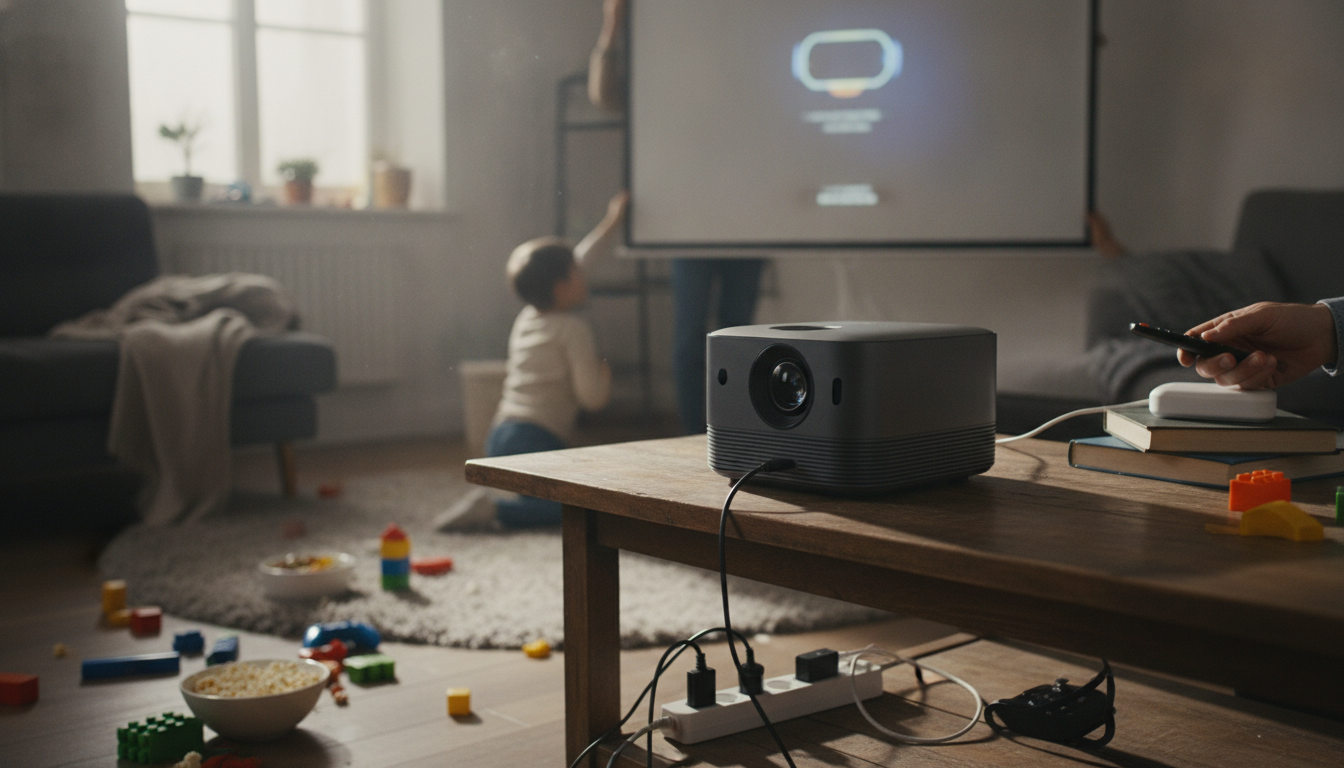
How to setup a smart projector?
Setting up a smart projector is usually quick once you handle placement, focus, and network sign-in in the right order. Start by choosing a spot that gives you the screen size you want without forcing extreme keystone correction. If you’re projecting onto a wall, pick a smooth, light-colored surface; for the sharpest image and better contrast, a dedicated screen helps.
1) Position the projector and power it on
Place the projector on a stable table, shelf, or ceiling mount, then plug it into a wall outlet. Turn it on and select the correct input if it doesn’t automatically show the home screen. If your model has an adjustable stand or feet, level it now so the image is naturally centered.
2) Dial in focus and image geometry
Use the focus wheel or autofocus feature until text looks crisp. Next, adjust image size by moving the projector closer or farther (or using optical zoom if available). Use keystone correction only as needed—too much digital correction can soften detail. If your projector offers “screen fit” or “auto keystone,” run it once, then fine-tune manually.
3) Connect to Wi‑Fi and sign in
Open the projector’s settings, choose your Wi‑Fi network, and enter the password. For the smoothest streaming, use 5 GHz Wi‑Fi when available and keep the projector within solid range of the router. If the projector runs Android TV, Google TV, or a brand smart platform, sign in to your account so apps can sync and update.
4) Update firmware and apps
Check for system updates right away. Firmware updates often improve stability, streaming compatibility, and Bluetooth performance. Then update streaming apps and install only what you’ll use to keep the interface fast.
5) Pair audio and connect devices
For better sound, pair a Bluetooth speaker or soundbar, or use HDMI ARC/eARC if your projector supports it. Connect a streaming stick, game console, or laptop via HDMI for the most reliable video. If you plan to cast, enable the built-in casting feature and confirm your phone is on the same Wi‑Fi network.
For a step-by-step walkthrough and extra troubleshooting tips, visit this smart projector setup guide.
FAQ
Why won’t my smart projector connect to Wi‑Fi?
Confirm you’re entering the correct password and that the router is broadcasting a compatible band (many projectors prefer 2.4 GHz for setup). Restart the projector and router, forget the network, then reconnect; if it still fails, run a firmware update or try a mobile hotspot to isolate the issue.













Leave a comment