
Make Chrome Look Modern: Themes, UI & Toolbar Cleanup
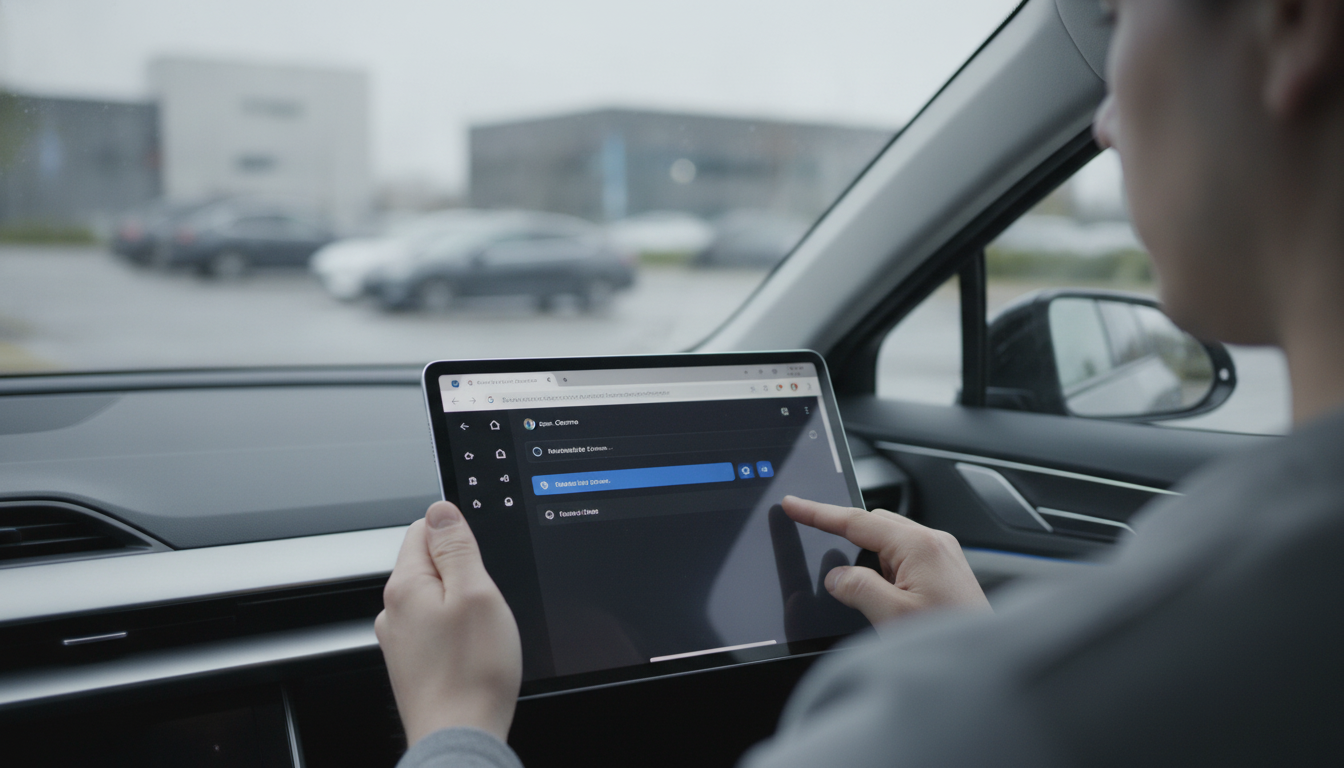
How to make Chrome look more modern?
A more modern-looking Chrome usually comes down to three things: updating to the newest UI, refreshing the toolbar and start page, and simplifying what’s visible (extensions, bookmarks, and clutter). With a few quick adjustments, Chrome can feel cleaner, faster, and more consistent with current design trends.
1) Update Chrome and enable the newest design
Start by making sure Chrome is fully updated, since visual refinements often arrive through regular releases. Open Chrome’s menu, go to Help > About Google Chrome, and let it update if needed. After the update, restart the browser to apply interface changes.
2) Refresh the look with a new theme
Chrome themes can instantly modernize the browser with updated colors and subtle styling. Open the Chrome Web Store and choose a clean, minimal theme, or use Chrome’s built-in color and theme options from the New Tab page’s Customize Chrome button. A neutral palette often looks the most modern and keeps tabs easy to read.
3) Clean up the toolbar and extensions
A crowded toolbar can make Chrome feel dated. Remove extensions you don’t use, and pin only the essentials so the top bar looks streamlined. You can also hide the bookmarks bar (or keep it trimmed) for a more spacious, contemporary layout.
4) Modernize the New Tab page
Use the New Tab customization options to adjust shortcuts, background, and colors. Reducing the number of visible shortcuts and selecting a simple background can make the page feel more polished. If you prefer a distraction-free start, consider turning off promotional cards and keeping the layout minimal.
5) Consider fonts and page zoom for a cleaner feel
Modern UI is also about readability. Set a comfortable default zoom (often 100–110%) and choose crisp font settings in Chrome’s Appearance options. Consistent sizing and spacing makes web pages—and Chrome itself—look more refined.
For step-by-step guidance and additional options, visit https://agathin.com/how-to-make-chrome-look-more-modern/.
FAQ
How do I make Chrome’s toolbar less cluttered?
Uninstall extensions you don’t need, then pin only the ones you use daily. Keep the bookmarks bar off (or trimmed) to reduce visual noise and make the top area feel cleaner.








Leave a comment