


Adjust LED Light Color: Remote, App, or Switch Tips
How to adjust LED light color?
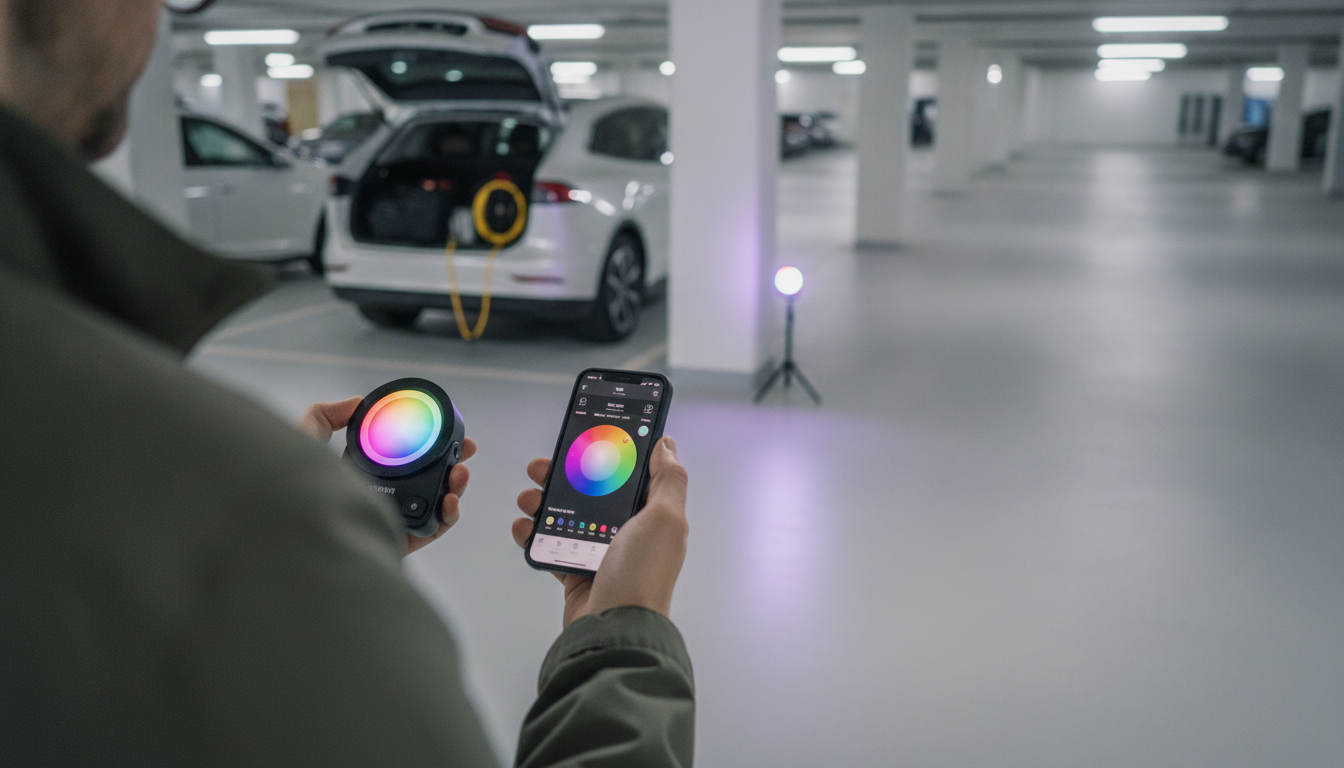
Adjusting LED light color usually comes down to the type of LED you’re using: color-changing smart bulbs, RGB/RGBIC LED strip lights, or “tunable white” fixtures that shift from warm to cool. The fastest way to get the exact color you want is to identify your controller (remote, app, wall switch, or inline button) and then match the color mode to your goal—solid color, scene, or white-temperature control.
1) Adjust color with a remote controller (common with LED strips)
If your LED strip came with a handheld remote, start by turning the lights on, then press a solid color button (red/green/blue/white) or a color wheel option if available. If the colors look “off,” check for a W (white) mode versus an RGB color mode, and use the brightness buttons after selecting the color to avoid washing out saturated tones.
2) Adjust color in an app (smart bulbs and Wi‑Fi/Bluetooth strips)
Open the brand’s lighting app, select the device (or the room/group), and look for Color, Scenes, or Temperature. For accurate results, choose a single color on the color picker first, then fine-tune brightness. If your lights support tunable white, slide the temperature from warm (more amber) to cool (more blue) for task lighting or relaxation.
3) Change color with a wall switch or inline controller
Some fixtures cycle through presets using a wall switch: flip the switch off and on within a second or two to move to the next color temperature or color mode. Inline controllers on LED strips often have a mode button; short-press to cycle colors and long-press to adjust brightness.
4) Fix common issues when the color won’t change
If the color won’t adjust, confirm the power supply matches the strip or bulb requirements, reseat any loose connectors, and ensure the controller is paired to the right device. For RGBIC strips, note that some modes limit you to built-in effects rather than a single uniform color.
For step-by-step troubleshooting and device-specific tips, see the full guide here: https://agathin.com/how-to-adjust-led-light-color/.
FAQ
Why do my LED lights show the wrong color?
Loose connectors, reversed polarity, or an incompatible controller/power supply can shift colors or make certain channels fail. Reconnect firmly, confirm the voltage and controller type, then re-pair or reset the controller if the issue persists.












Leave a comment