


Connect an LED Projector to Your Phone: Cable or Wireless
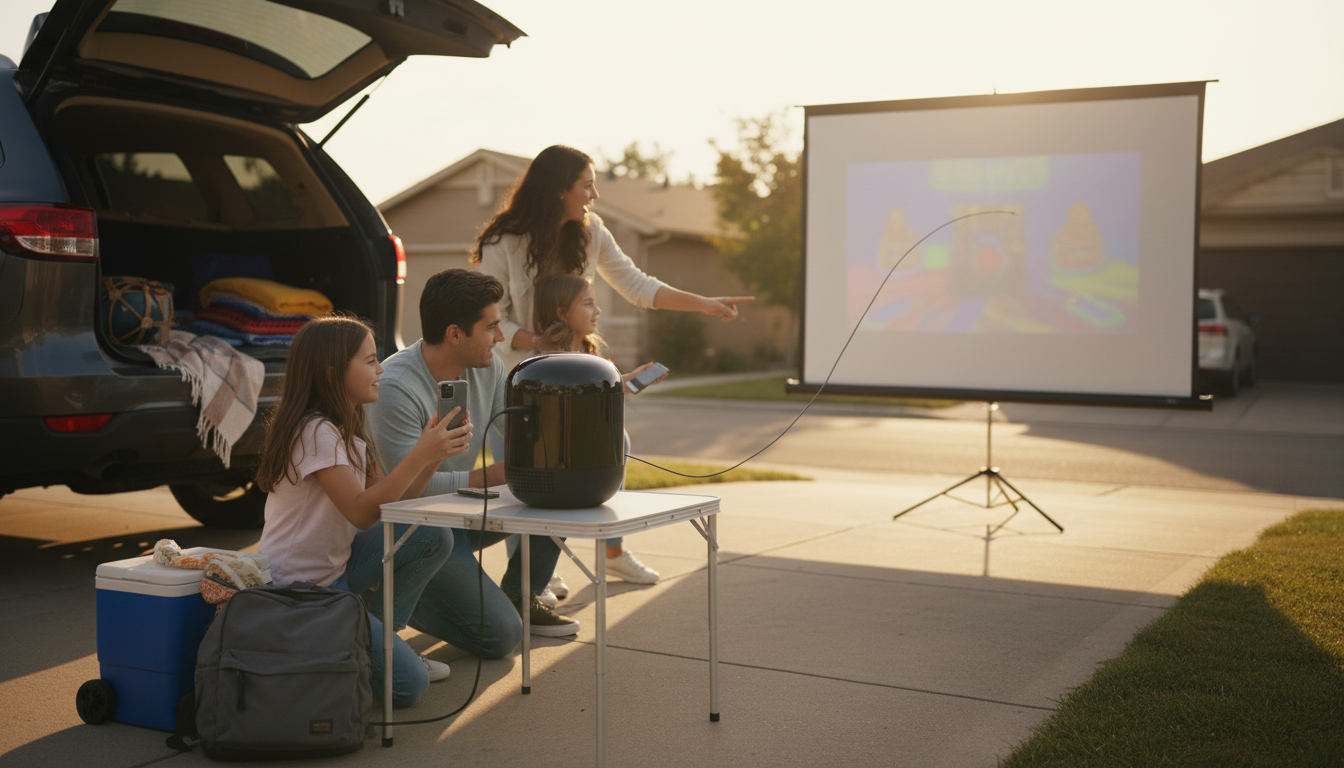
How to connect the LED projector to your phone?
Connecting an LED projector to your phone usually comes down to two paths: a wired connection (more reliable) or a wireless connection (more convenient). The right option depends on your phone type (iPhone or Android) and what inputs your projector supports (HDMI, USB-C, Lightning, Wi‑Fi, or Bluetooth).
Option 1: Connect with a cable (most stable)
If your projector has an HDMI port, a wired setup is typically the fastest way to get a clean, low-lag picture. For iPhones, use a Lightning Digital AV Adapter (or USB‑C to HDMI adapter on newer models) plus an HDMI cable. For Android phones, use a USB‑C to HDMI adapter (or MHL adapter on older devices) and then connect to the projector’s HDMI input. Once connected, switch the projector’s input/source to the matching HDMI port, then start playing your video or mirror your screen.
Option 2: Connect wirelessly (no cables)
Many LED projectors support wireless casting through built-in Wi‑Fi, Miracast, AirPlay, or a companion app. Turn on the projector’s Wi‑Fi/casting mode, connect your phone to the same Wi‑Fi network (or the projector’s hotspot if it creates one), then use your phone’s casting feature: on iPhone, use Screen Mirroring; on Android, use Cast/Smart View. If your projector doesn’t support casting natively, a streaming stick (like a Chromecast, Fire TV Stick, or Apple TV) plugged into HDMI can add wireless screen sharing.
Quick troubleshooting if it won’t display
Confirm the projector input is set correctly, reseat the cable or adapter, and make sure your phone is allowed to output video (some apps restrict mirroring). If audio plays but the screen is black, try a different HDMI cable, lower the projector resolution, or reboot both devices.
For a step-by-step walkthrough with more connection methods and tips, see the full guide here: https://agathin.com/how-to-connect-the-led-projector-to-your-phone/.
FAQ
Why is my projector connected but not showing my phone screen?
It’s often the wrong input/source selected on the projector, a loose adapter/cable, or an app that blocks screen mirroring. Try switching inputs, reconnecting everything, and testing with a different app or video source.













Leave a comment