


Projector Plays YouTube but Not Movies? Here’s Why
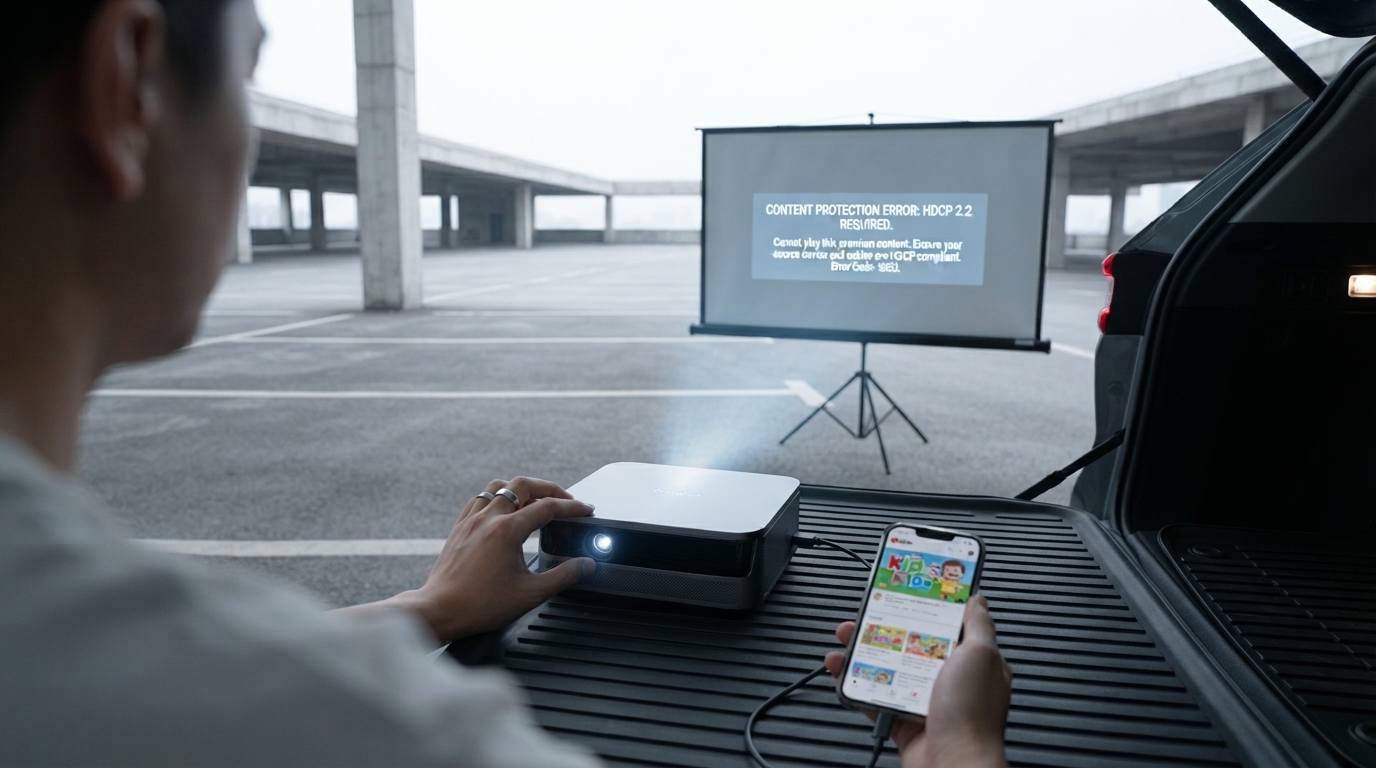
Why can’t I watch movies on a projector?
If your projector turns on but movies won’t play (or they play without sound, show a black screen, or display an error), the cause is usually one of a few common issues: copy protection (DRM/HDCP), an incompatible connection, the wrong source settings, or a playback device/app limitation. Projectors often work perfectly for photos, presentations, and YouTube—then fail with premium streaming apps—because movies are more heavily protected and demand stricter signal support.
Most common reason: DRM/HDCP blocking video
Many services (Netflix, Disney+, Prime Video, Hulu, etc.) require an HDCP-compliant connection from the playback device to the display. If any part of the chain (phone/tablet adapter, HDMI cable, switch, receiver, or the projector input) doesn’t properly support HDCP, the app may refuse to play video, show a blank screen, or downscale quality. This is especially common when using “cast” features, older adapters, or inexpensive HDMI splitters.
Streaming from a phone doesn’t always work
Screen mirroring and some USB-C-to-HDMI setups can be blocked by the app even if your phone mirrors other content fine. When possible, use a dedicated streaming device (Roku, Fire TV, Apple TV, Chromecast with Google TV) connected directly to the projector via HDMI for the most consistent movie playback.
Wrong input, resolution, or audio settings
Double-check the projector is on the correct input (HDMI 1/HDMI 2, etc.) and that the source device is set to a supported resolution and refresh rate (try 1080p at 60Hz). If you get picture but no sound, set the source audio output to PCM/stereo or connect audio separately via Bluetooth, 3.5mm, or an external speaker system depending on your projector’s options.
App and device limitations
Some “smart” projectors run lightweight operating systems that can’t run certain streaming apps reliably, or they may require updates. If the built-in app store lacks a service or playback is unstable, an external streaming stick is typically the quickest fix.
For a deeper look at projector setup, connectivity, and what to expect from a compact smart model, see this guide: https://agathin.com/guide-1100-ansi-mini-1080p-smart-projector-wifi-bluetooth/.
FAQ
Why does my projector show a black screen with Netflix?
This is commonly caused by HDCP/DRM restrictions when the projector, adapter, or intermediary device isn’t fully compatible. Connecting a certified streaming device directly to the projector’s HDMI input often resolves it.













Leave a comment